Widget or full-screen clock?
A widget sits on your launcher’s home screen beside app icons. A full-screen clock appears inside the clock app. They are different views, so changing one does not necessarily change the other.
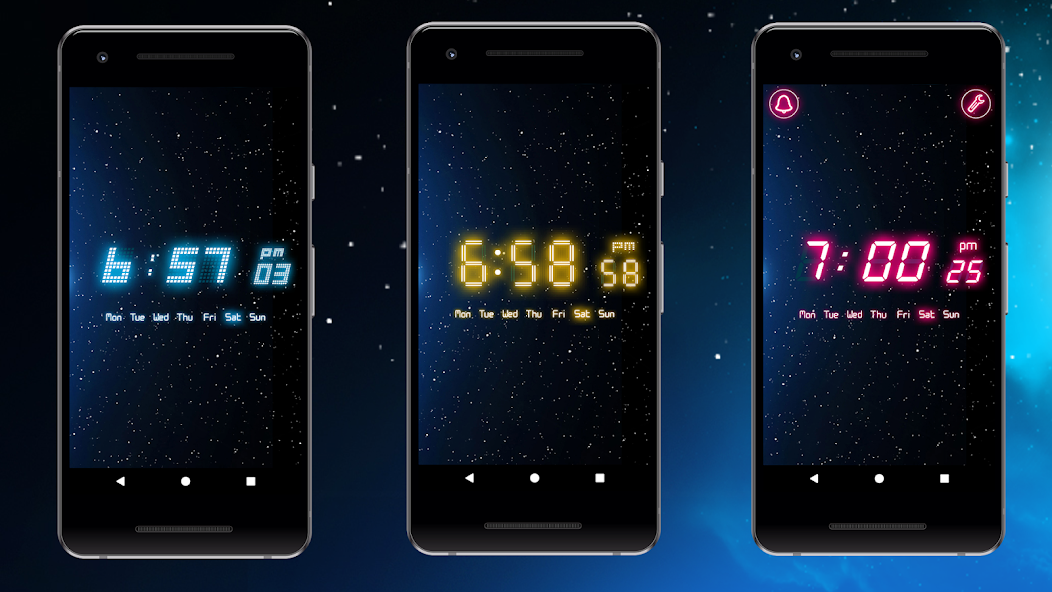
Alarm Clock Neon includes widget font-colour and transparency controls, app-colour customization and a full-screen clock. For a phone on your nightstand, start with our Android bedside clock guide.
Add a neon clock widget to Android
First install Alarm Clock Neon from its official Google Play listing. Then use your launcher’s widget picker:
- Touch and hold an empty area of your home screen.
- Open Widgets and find the clock app in the list.
- Choose an available widget and place it in an empty area.
- If a configuration screen opens, review its appearance options before finishing.
Launcher menus vary. These are the general widget-picker steps in Google’s Android widget help; your phone may use different labels.
Choose a colour and adjust transparency
Alarm Clock Neon’s widget options let you change the font colour and transparency. Choose a colour that stays readable against your wallpaper, then review the widget on the actual home screen.
Transparency changes how much of the wallpaper shows through the widget. If the digits are difficult to see, try a more contrasting colour or a less busy area of your wallpaper. App-colour settings and full-screen brightness are separate from the launcher’s display.
Resize and place the clock widget
Touch and hold the placed widget. If your launcher and that widget support resizing, handles appear around it; drag them to change its size. If no handles appear, check whether another available widget size fits your layout.
Leave enough space around the digits and check contrast on both light and dark parts of your wallpaper. A widget stays on the home screen; use the app’s full-screen view when you want a dedicated clock display.
Common neon widget questions
Does the online clock become a widget?
No. The online neon clock runs in your browser. Home-screen clock widgets are provided by the Android app.
Are the full-screen and widget colours linked?
They have separate appearance controls. Check the options for the particular widget or clock view you are using.
Why can’t I find the widget?
Confirm the app is installed on the same device and user profile, then look for it in your launcher’s widget list. For help with Alarm Clock Neon, contact app support with your phone, Android version and launcher name.
Is every option free?
The app is free to install and includes ads and in-app purchases. Check the app and its current Google Play listing for individual paid options.